Accessing the Azure login portal doesn’t have to be complicated. Whether you’re a cloud beginner or an IT pro, mastering secure and efficient logins is essential for managing your Microsoft cloud resources with confidence and speed.




Understanding the Azure Login Portal

The Azure login portal is the primary gateway to Microsoft Azure, a comprehensive cloud computing platform used by millions of businesses worldwide. When you navigate to portal.azure.com, you’re directed to the official Azure sign-in page where authentication begins.
This portal isn’t just for administrators—it’s used by developers, analysts, and even billing managers who need access to cloud services like virtual machines, databases, AI tools, and storage solutions. The login process verifies your identity and grants access based on assigned roles and permissions.
What Is the Azure Login Portal?
The Azure login portal refers to the web-based interface where users authenticate to access the Azure dashboard. It supports multiple identity types, including work or school accounts (managed by Azure Active Directory) and Microsoft personal accounts (in specific scenarios).
Authentication is handled through Azure Active Directory (Azure AD), Microsoft’s cloud-based identity and access management service. This ensures that only authorized users can interact with Azure resources, maintaining security and compliance across organizations.
- Central hub for managing cloud infrastructure
- Supports multi-factor authentication (MFA)
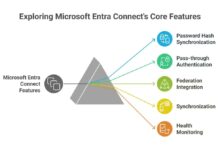
- Integrates with on-premises directories via Azure AD Connect
How Does Azure Authentication Work?
When you enter your credentials at the Azure login portal, the system checks them against Azure AD. If your account is federated with an on-premises identity provider like Active Directory Federation Services (AD FS), authentication may occur within your corporate network.
For cloud-only accounts, credentials are validated directly in Azure AD. Conditional access policies can further enforce rules such as requiring MFA from untrusted locations or blocking legacy authentication protocols.
“Authentication is the first line of defense in cloud security—getting it right at the Azure login portal is non-negotiable.” — Microsoft Security Best Practices
Step-by-Step Guide to Accessing the Azure Login Portal
Logging into the Azure portal is straightforward, but understanding each step helps troubleshoot issues and enhances security awareness. Follow this guide to ensure a smooth experience every time you access your cloud environment.
Navigate to the Official Azure Portal URL
Always start by visiting https://portal.azure.com, the official entry point for the Azure management console. Avoid third-party links or search engine ads that might lead to phishing sites.
Bookmarking this URL in your browser ensures quick and safe access. Some organizations also use custom domains for their Azure AD sign-in pages, but the main portal remains portal.azure.com.
- Use HTTPS to ensure encrypted communication
- Verify the site’s SSL certificate if suspicious
- Enable browser password managers cautiously
Enter Your Credentials Correctly
On the login screen, input your email address associated with your Azure subscription. This is typically a work or school account (e.g., user@company.com), not a personal Outlook.com account unless explicitly configured.
After entering the email, click ‘Next’ and provide your password. Be mindful of caps lock and keyboard layout, especially when using remote desktops or different devices.
If you’re part of an organization, you might see a branded login page with your company’s logo and custom messaging—this is normal and indicates a configured Azure AD tenant.
Complete Multi-Factor Authentication (MFA)
Most enterprise accounts require MFA after entering the password. This adds a second verification layer, such as:
- Approval via Microsoft Authenticator app
- Phone call or SMS code
- Security key (FIDO2 compliant)
- Biometric verification on trusted devices
Failing to complete MFA will block access, even with correct credentials. Ensure your MFA methods are up to date and accessible before logging in.
Common Issues with the Azure Login Portal and How to Fix Them
Despite its reliability, users often encounter problems when trying to log in to the Azure portal. These issues range from forgotten passwords to technical glitches. Knowing how to resolve them quickly minimizes downtime.
Forgot Password or Locked Account
One of the most frequent issues is forgetting your password or getting locked out due to multiple failed attempts. Azure provides a self-service password reset (SSPR) feature that allows users to regain access without IT intervention.
To use SSPR, click ‘Forgot password?’ on the login screen and follow the prompts. You’ll need access to a registered recovery method like email, phone, or authenticator app.
Organizations must enable SSPR in Azure AD settings and assign appropriate licenses (e.g., Azure AD Premium P1 or P2) for full functionality.
“Over 40% of Azure login issues stem from password-related problems.” — Microsoft Azure Support Report 2023
Multi-Factor Authentication Failures
MFA failures occur when the second factor cannot be verified—perhaps your phone is dead, or the authenticator app isn’t syncing. In such cases, having backup methods configured is critical.
Users should register at least two MFA options (e.g., authenticator app + phone number). Administrators can also grant temporary bypass codes in emergency situations via the Azure portal or PowerShell.
- Check device connectivity and time sync for authenticator apps
- Use backup codes stored securely during setup
- Contact IT support if all methods fail
Browser and Cache Issues
Sometimes, the problem isn’t with credentials but with the browser itself. Cached cookies, outdated extensions, or disabled JavaScript can prevent the Azure login portal from loading correctly.
Try these troubleshooting steps:
- Clear browser cache and cookies
- Disable ad blockers or privacy extensions temporarily
- Try a different browser (Chrome, Edge, Firefox)
- Use InPrivate or Incognito mode
If the portal still doesn’t load, check your internet connection or firewall settings that might block Azure endpoints.
Security Best Practices for the Azure Login Portal
Securing access to the Azure login portal is paramount. A compromised account can lead to data breaches, unauthorized resource creation, or financial loss due to cloud spending.
Implementing strong authentication and monitoring policies protects both individual users and the entire organization.
Enable Multi-Factor Authentication (MFA) for All Users
MFA is one of the most effective ways to prevent unauthorized access. Even if a password is stolen, attackers cannot bypass the second factor without physical access to the user’s device.
Administrators should enforce MFA through Conditional Access policies in Azure AD. These policies can require MFA for all users, specific groups, or under certain conditions like logging in from outside the corporate network.
- Use phishing-resistant methods like FIDO2 security keys
- Avoid SMS-based MFA for high-risk accounts (NIST guidelines)
- Regularly review registered MFA methods
Use Conditional Access Policies
Conditional Access (CA) allows organizations to define rules that control how and when users can access Azure resources. For example, you can block access from unmanaged devices or require compliant devices for sign-in.
Common CA policies include:
- Require MFA for external users
- Block access from high-risk countries
- Enforce device compliance via Intune
These policies are created in the Azure AD portal under ‘Security’ > ‘Conditional Access’ and apply dynamically during the login process.
Monitor Sign-In Logs and Risky Activities
Azure AD provides detailed sign-in logs that show who accessed the portal, from where, and whether any risks were detected. Administrators can use these logs to identify suspicious behavior, such as logins from unusual locations or at odd hours.
The Identity Protection dashboard highlights risky sign-ins and compromised users, allowing proactive remediation. Automated alerts can be set up using Microsoft Sentinel or Power Automate.
“Real-time monitoring reduces breach detection time by up to 90%.” — Microsoft Cybersecurity Insights 2024
Managing Multiple Subscriptions via the Azure Login Portal
Many users manage more than one Azure subscription—perhaps for different departments, projects, or clients. The Azure login portal allows seamless switching between subscriptions once authenticated.
Understanding how to navigate and organize these subscriptions improves efficiency and reduces errors in resource management.
Switching Between Subscriptions
After logging in, click your account name in the top-right corner of the Azure portal. A dropdown will display all subscriptions you have access to. Select the one you want to work with.
The current subscription context determines which resources you can view and manage. Always verify the selected subscription before deploying or deleting resources.
- Use subscription filters in the portal
- Pin frequently used subscriptions for quick access
- Check role assignments per subscription
Understanding Role-Based Access Control (RBAC)
RBAC defines what actions a user can perform within a subscription. Common roles include:
- Owner – Full access, including permission management
- Contributor – Can create and manage resources but not assign roles
- Reader – View-only access
Roles can be assigned at the subscription, resource group, or individual resource level. Proper RBAC configuration prevents privilege escalation and enforces the principle of least privilege.
Using Azure Lighthouse for Cross-Tenant Management
Azure Lighthouse enables service providers and enterprises to manage multiple Azure tenants from a single portal. This is useful for MSPs (Managed Service Providers) overseeing client environments.
With Lighthouse, you can delegate resource management across tenants while maintaining isolation and security. Users log in once and gain access to delegated resources across customers.
Setup involves creating a service principal and onboarding customer tenants through Azure Marketplace offers or ARM templates.
Advanced Features of the Azure Login Portal
Beyond basic login, the Azure portal offers advanced tools that enhance productivity, automation, and governance. Leveraging these features gives users greater control over their cloud operations.
Custom Dashboards and Favorites
Users can personalize their Azure portal experience by creating custom dashboards. These allow you to pin key metrics, resource groups, or monitoring tools for quick access.
To create a dashboard:
- Navigate to ‘Dashboard’ > ‘New Dashboard’
- Add tiles for VMs, databases, cost analysis, etc.
- Share dashboards with team members
Favoriting commonly used services (like ‘Virtual Machines’ or ‘Storage Accounts’) places them at the top of the menu for faster navigation.
Using Azure Cloud Shell
The Azure Cloud Shell is a browser-based command-line interface accessible directly from the portal. It supports both Bash and PowerShell and comes pre-authenticated with your login session.
Cloud Shell is ideal for running scripts, managing resources via CLI, or automating tasks without installing tools locally. Your home directory is stored in Azure Storage for persistence across sessions.
Access it by clicking the >_ icon in the top toolbar of the Azure portal.
Integration with Microsoft 365 and Other Services
The Azure login portal integrates seamlessly with other Microsoft services like Microsoft 365, Dynamics 365, and Power Platform. Single sign-on (SSO) allows users to move between services without re-authenticating.
This integration is powered by Azure AD, which acts as the central identity provider. Administrators can configure app registrations, enterprise applications, and SSO settings directly in the Azure portal.
Troubleshooting and Support Resources for the Azure Login Portal
Even with best practices in place, issues can arise. Knowing where to find help and how to escalate problems is crucial for maintaining productivity.
Check Azure Status Page for Outages
If you can’t log in and suspect a service-wide issue, visit the Azure Status Page to check for ongoing incidents. This page provides real-time updates on service health across global regions.
Look for alerts under ‘Azure Active Directory’ or ‘Portal’ if login issues persist. Microsoft typically posts root cause analyses and estimated resolution times.
Contact Microsoft Support
Paid Azure subscribers can open support tickets directly from the portal. Navigate to ‘Help + support’ > ‘New support request’ and choose the appropriate issue type.
Support plans vary by subscription level:
- Basic – Community forums only
- Developer – Email support
- Standard/Premium – 24/7 phone, email, and chat
Include detailed information like error codes, screenshots, and timestamps to speed up resolution.
Use Azure Advisor for Optimization and Guidance
Azure Advisor is a built-in tool that provides personalized recommendations for improving security, performance, cost, and reliability. While not directly related to login, it helps maintain a healthy Azure environment.
For example, Advisor might recommend enabling MFA for inactive users or removing unused accounts—both of which strengthen login security.
Access it from the left-hand menu in the Azure portal.
What is the correct URL for the Azure login portal?
The official URL for the Azure login portal is https://portal.azure.com. Always use this link to avoid phishing scams.
Why can’t I log in to the Azure portal?
Common reasons include incorrect credentials, expired passwords, MFA setup issues, browser cache problems, or service outages. Try resetting your password, clearing your browser data, or checking the Azure status page.
How do I enable multi-factor authentication for my Azure account?
MFA can be enabled by an administrator through Azure AD > Security > Multi-Factor Authentication. Users can also manage their own settings under My Account if allowed by policy.
Can I access multiple Azure subscriptions with one login?
Yes, if you have permissions, you can switch between subscriptions after logging in. Use the subscription selector in the top toolbar to change contexts.
Is the Azure login portal secure?
Yes, the Azure login portal uses industry-standard encryption, MFA, and conditional access policies to protect user identities. However, users must follow security best practices to prevent account compromise.
Mastering the Azure login portal is essential for anyone working with Microsoft’s cloud platform. From secure authentication and MFA to managing multiple subscriptions and troubleshooting issues, understanding every aspect ensures smooth and safe access to your cloud resources. By following best practices and leveraging built-in tools, you can maximize productivity while minimizing risks.
Further Reading: